由于公司业务的变更,我这边转开发,做一些开发工作。
目前手头上有个闲置的服务器,而且自己的电脑比较卡。我们用的都是django框架。用pycharm开发比较便捷。所以我就打算用pycharm 做远程开发。
由于之前的同事是把环境(mongo,db)全部封装到vagrant(virtualbox的工具) 的box中。所以我的想法就是远程机器启动virtualbox虚拟机,然后远程调用开发。
同事的架构比较简单。本地使用vagrant搭建虚拟环境,然后pycharm有vagrant的插件,直接本地开虚拟机开发。
由于我这边vagrant不是搭建在本地,是远程,调研了下,无法使用vagrant插件。不过发现pycharm的ssh功能也够强大。也能满足我的需求。
远程服务器安装virtualbox虚拟环境:
参考文档:https://wiki.centos.org/zh/HowTos/Virtualization/VirtualBox
cd /etc/yum.repos.d
wget http://download.virtualbox.org/virtualbox/rpm/rhel/virtualbox.repo
yum install VirtualBox-5.2
由于我之前装的就是桌面版,所以很方便。
然后需要安装vagrant,因为同事是基于vagrant导出的,不支持virtualbox的导入。
参考url:https://www.howtoing.com/how-to-install-vagrant-on-centos-7
其实很简单,通过rpm包安装即可。去https://releases.hashicorp.com/vagrant/ 下载最新的RPM
这里遇到个很诡异的问题,当我安装完会发现执行 vagrant 命令非常卡顿。但是机器又没问题。后来排查发现。是远程服务器无法访问外网,vagrant的任何命令,都会监测是否有更新。所以也建议大家安装最新版。同时这个命令 也真的很变态。
导入虚拟机镜像box
vagrant box add test devops_20190305.box (导入)
vagrant box list (查看)
vagrant init test (初始化)
vagrant up (启动)
vagrant global-status (查看id)
vagrant reload 5ad1ad3 (修改配置,重启)
这样就可以了。由于后面需要pycharm 远程访问ssh开发。所以相关端口也需要映射。
修改 /root/base/Vagrantfile 添加:
config.vm.network “forwarded_port”, guest: 6379, host: 6379
config.vm.network “forwarded_port”, guest: 27017, host: 27017
config.vm.network “forwarded_port”, guest: 3306, host: 3306
config.vm.network “forwarded_port”, guest: 8080, host: 8080
config.vm.network “forwarded_port”, guest: 8000, host: 81
config.vm.network “forwarded_port”, guest: 8200, host: 8200
config.vm.network “forwarded_port”, guest: 22, host: 2223
vagrant reload 5ad1ad3 (修改配置,重启)
后面就到了pycharm 配置远程ssh,然后做开发。
参考url:https://coolboygym.github.io/2018/05/20/pycharm-remote-development/
这个文档比较详细。但是我实际操作中发现,可以先添加 远程python。然后再做文件同步。这样就不用设置2个ssh源了。
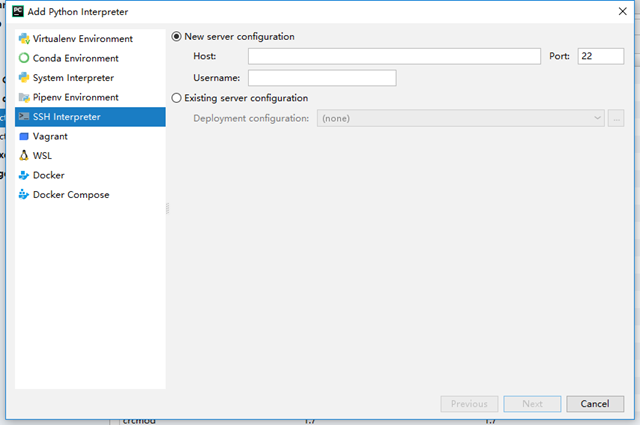
添加远程python
在File | Settings(在Mac OS上是Preferences)| Project | Project Interpreter 下新加ssh(我之前已经为vagrant做好端口映射,并添加好公钥,测试ssh可以登录)。
设置文件同步
Tools | Deployment | Configuration 并指定了连接VM的参数
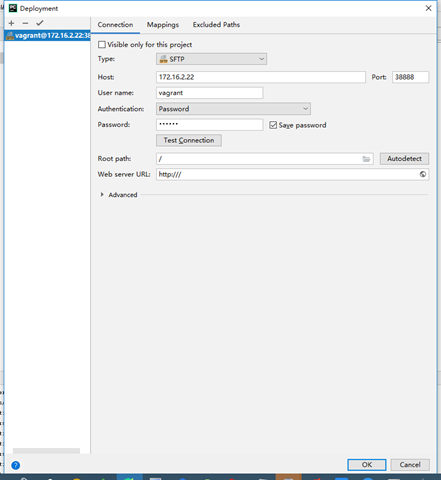
主要是 mappings 要指定要同步的目录。
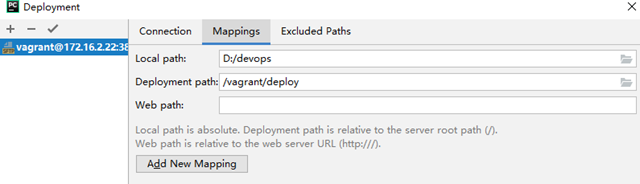
然后上传代码
现在我可以在项目视图中右键单击我的项目,并选择 Upload to :

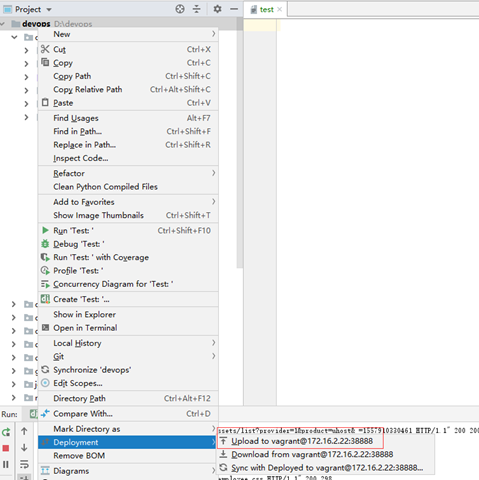
然后设置自动同步
您可以通过单击 Tools | Deployment | Automatic Upload 来设置自动上传:
测试发现,本地改动,远端服务器的代码也会改动。
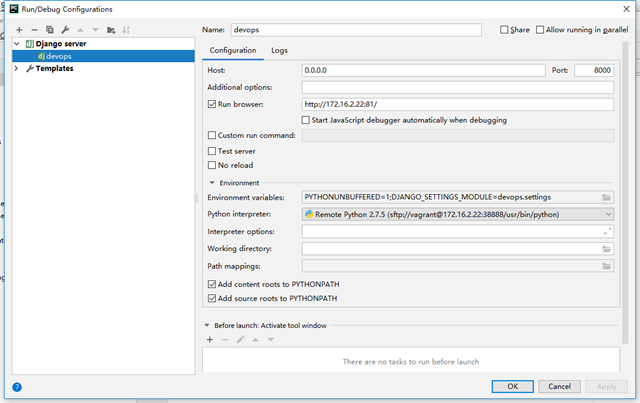
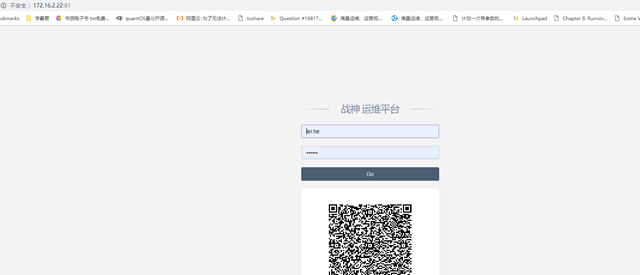
到这类 就是最后设置下。run的配置就可以。设置端口,监听ip,访问url。然后做下端口映射,就ok了。enjoy it